iPhone Storage Full
iPhone storage full? Fix it in under 5 minutes
When an iPhone says storage is full, photos and video are the cause about 50–70% of the time — not apps. The fastest fix is to clear the photo library of duplicates, near-duplicates, blurry frames, and old screenshots, then empty Recently Deleted. That usually returns 2–10 GB in one pass. Offloading apps returns 1–4 GB and takes longer. Here is the full order of operations, ranked by what each step actually gives back.
First: see what's actually using your storage
Go to Settings → General → iPhone Storage. Wait a few seconds for the colored bar at the top to calculate — it shows exactly what's consuming space, sorted by size. For most people, Photos is the biggest bar. That's where to focus first.
Ranked by impact
6 fixes, from biggest win to smallest
Clean your photo library
Photos and videos are 50–70% of storage on a typical iPhone. Duplicates, blurry shots, burst sequences, and old screenshots make up most of the waste — this is the single biggest lever.
Review large message attachments
Settings → General → iPhone Storage → Messages → Review Large Attachments. iMessage and WhatsApp threads silently accumulate photos and videos for years.
Enable iCloud Photos 'Optimize Storage'
Settings → Photos → toggle Optimize iPhone Storage. Keeps full-res originals in iCloud, smaller previews on-device. Requires enough iCloud space for your library.
Offload unused apps
Settings → General → iPhone Storage → Enable Auto Offloading, or manually offload large games you haven't opened in 90+ days. Your data stays put.
Clear app caches
Spotify, Netflix, Maps, and podcast apps cache downloaded content. Check each app's size under Settings → iPhone Storage and clear cache or offline downloads.
Clear Safari / browser data
Settings → Safari → Clear History and Website Data. Smaller win, but takes 10 seconds.
The 5-minute routine
Do these five things, in this order
Ordered so the biggest win comes first. Most people can stop after step three.
Check what is actually using the space
Settings → General → iPhone Storage. Wait for the coloured bar to finish calculating. Photos is the largest segment on most iPhones.
Clear the photo library first
Run an on-device scan for duplicates, near-duplicates, blurry frames, and old screenshots, then delete in bulk. This is the single biggest lever, typically 2–10 GB.
Empty Recently Deleted
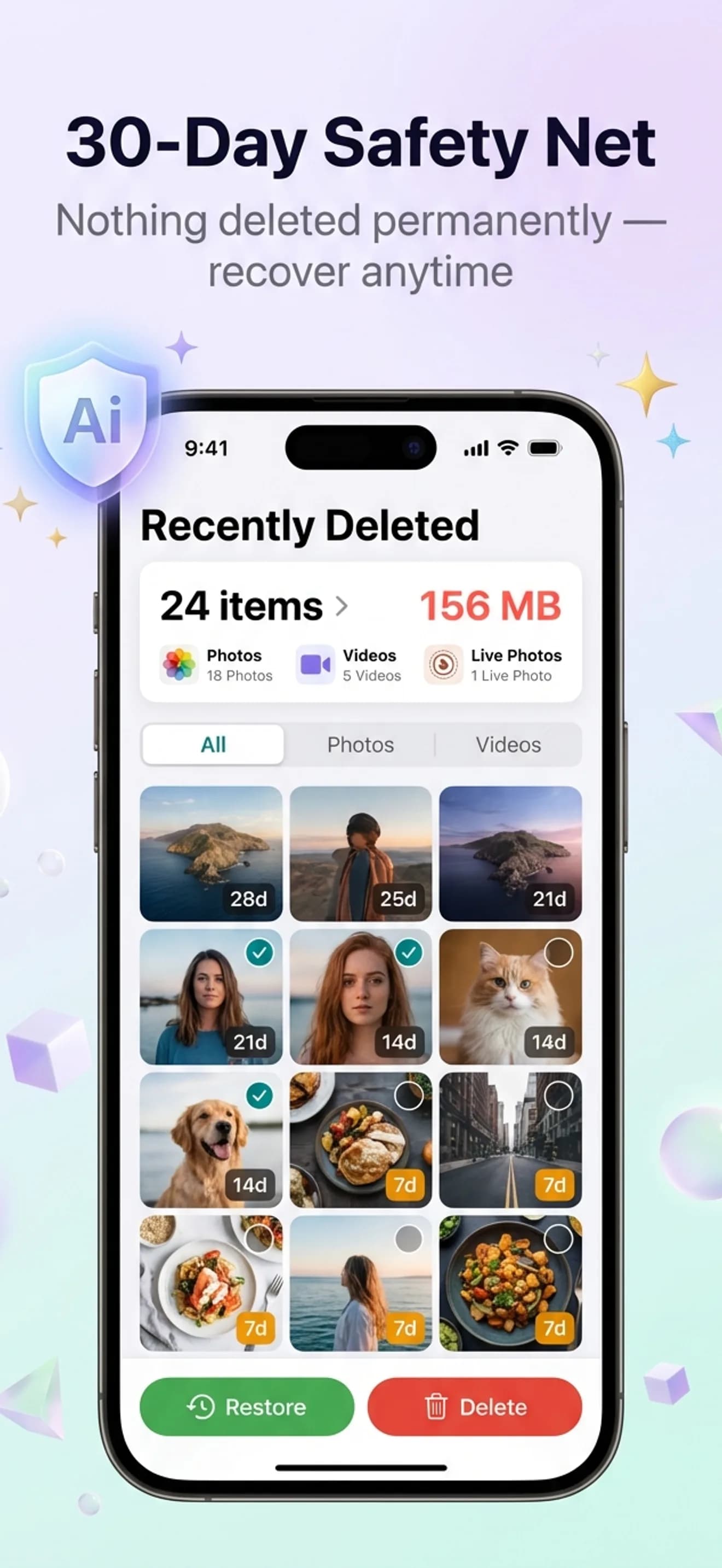
Photos → Albums → Recently Deleted → Select → Delete All. Until you do, deleted photos keep occupying storage for 30 days.
Review large message attachments
Settings → General → iPhone Storage → Messages → Review Large Attachments, then delete the biggest videos and photo threads.
Offload apps you have stopped using
Settings → General → iPhone Storage → Offload Unused Apps. The app icon and its data stay; only the binary is removed.
Why offloading apps disappoints
Offloading removes an app's binary but keeps its documents and data, so a 300 MB app might return 250 MB. Do that for ten apps and you have reclaimed maybe 2 GB, having lost the ability to open any of them instantly. The photo library, meanwhile, is typically 50–70% of used storage and holds a far larger share of genuinely disposable content: exact copies, near-identical frames, screenshots from two years ago. Fixing the biggest bar first is simply better arithmetic.
What System Data is, and why you cannot delete it
System Data — labelled Other on older iOS versions — is caches, logs, Siri voices, keyboard dictionaries, and streaming buffers. A few gigabytes is normal. When it balloons past 15 GB, a specific app is usually to blame: music and video services cache aggressively, and messaging apps hoard attachment thumbnails. iOS purges the category on its own when free space runs low, so there is no button to clear it. The reliable moves are indirect: delete and reinstall the worst offender, clear Safari history and website data, and restart the phone.
Storage full but nothing left to delete?
Two hiding places. Recently Deleted keeps everything you removed for 30 days and it still counts against your storage — clear it at Photos → Albums → Recently Deleted → Select → Delete All. And a library with no obviously deletable photos can still be 15–30% duplicates and near-duplicates, which only look significant once they are grouped. Estimate your own share with the photo waste calculator before concluding there is nothing to remove. If storage is blocking an iOS update specifically, see what to do when there is not enough storage to update.
How iCloud actually interacts with device storage
Buying more iCloud storage does not free space on the iPhone by itself. The setting that does is Settings → Photos → Optimize iPhone Storage: full-resolution originals stay in iCloud and the device keeps smaller previews, which can halve the library's local footprint. Deleting a photo still removes it from both. And if your photos are also backed up to Google Photos, that library holds its own duplicates on a separate quota — clearing the iPhone does not touch it, so it needs its own cleanup pass when Google One storage is full.
Fix #1, automated
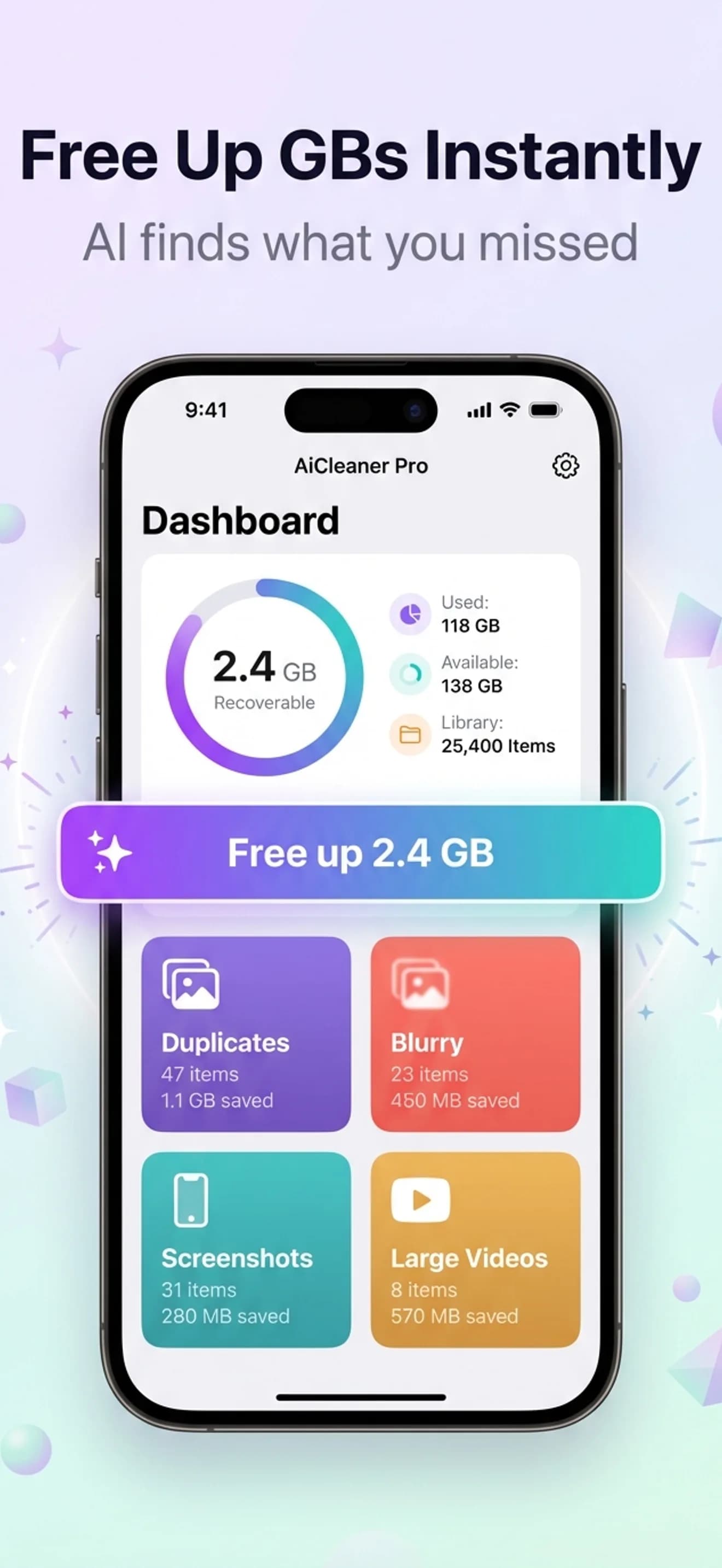
Let AI find the 2–10 GB you don't need
AiCleanerPro scans your entire photo library on-device in about 30 seconds and groups duplicates, near-duplicates, blurry shots, old screenshots, and large files into clear categories.
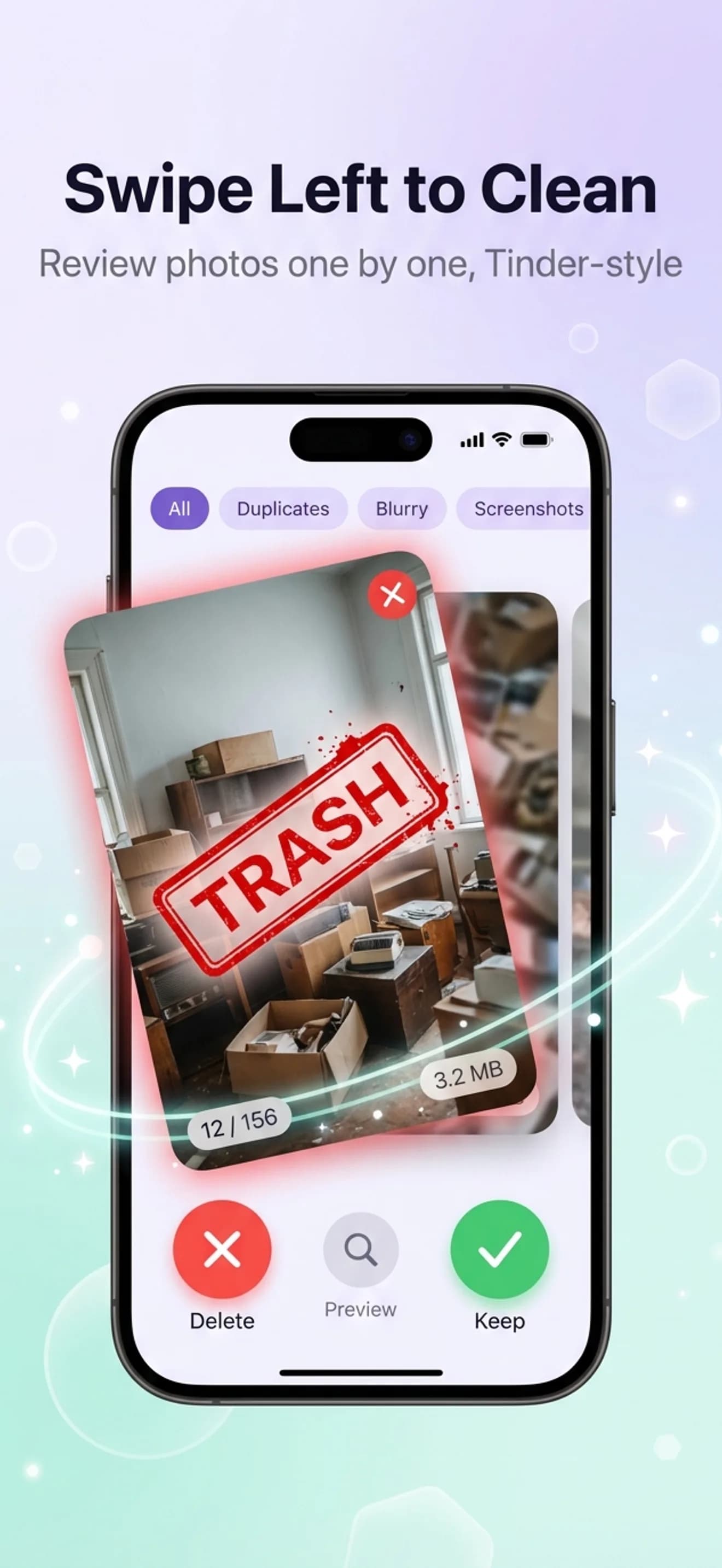
Swipe left to delete, right to keep. Nothing uploads — everything runs locally using Apple's Vision framework. Deleted photos sit in a 30-day recycle bin.
Go deeper
More on freeing up iPhone storage
How to free up iPhone storage (full guide)
The complete 7-method breakdown with real-world storage numbers.
Delete every screenshot at once
The Screenshots album, and the near-identical ones it does not group.
Not enough storage to update iOS?
Why the update needs more room than its size, and the route that needs almost none.
Delete duplicate photos on iPhone
The single highest-impact fix, step by step.
FAQ
Storage full questions, answered
Why does my iPhone say storage is full when I have apps deleted?
Deleting apps only removes what that app itself stored. The photo library — usually 50–70% of total storage — is untouched by app deletion. If storage is still full after removing apps, your photo library is almost certainly the real cause.
What's the fastest way to fix iPhone storage full?
Clean your photo library first — it's the highest-impact fix by far. A 30-second AI scan with an app like AiCleanerPro surfaces duplicates, blurry shots, and old screenshots you can delete in one pass, typically freeing 2–5 GB immediately.
Will enabling iCloud 'Optimize Storage' delete my photos?
No. It keeps full-resolution originals safely in iCloud and stores smaller, storage-efficient versions on your device. Photos still open normally — the full-res version streams down automatically when needed. You do need enough iCloud storage for your whole library.
How do I see what's actually using my iPhone storage?
Go to Settings → General → iPhone Storage. Wait a few seconds for the colored bar to calculate. It shows exactly what's consuming space — Photos, Apps, Messages, System Data — sorted by size, with a list of individual apps below.
Is it safe to delete photos to fix storage full?
Yes, if you're deleting duplicates, blurry shots, and screenshots you don't need. AiCleanerPro's 30-day recycle bin means nothing is permanently gone right away — you can review and recover anything before it's deleted for good.
What is System Data on iPhone and why is it so large?
System Data (previously called Other) holds caches, logs, Siri voices, keyboard dictionaries, streaming buffers, and files iOS has not yet cleaned up. A few gigabytes is normal; 15 GB or more usually means a streaming or messaging app has cached heavily. iOS purges it automatically when storage runs low, so the reliable fixes are indirect: delete and reinstall the biggest offender, clear Safari history and website data, and restart the iPhone. There is no supported way to delete System Data directly.
My iPhone storage is full but I have nothing to delete. What now?
Two things are usually hiding. First, Recently Deleted still holds up to 30 days of photos and videos that count against your storage until you empty it. Second, the photo library holds duplicates, near-duplicates, and burst frames that do not look deletable one by one but total several gigabytes together. Check Settings → General → iPhone Storage for the actual breakdown before assuming there is nothing left to remove.
Does iCloud storage free up space on my iPhone?
Only if Optimize iPhone Storage is on. Buying more iCloud storage by itself changes nothing on the device — it just raises the ceiling for what iCloud can hold. With Settings → Photos → Optimize iPhone Storage enabled, iOS keeps full-resolution originals in iCloud and smaller previews on the device, which is what actually reclaims local space.
How much free space should an iPhone have?
Keep at least 10% of total capacity free, and never let it drop below about 2 GB. iOS needs headroom to install updates, record video, and manage caches. Below that threshold updates fail, the camera refuses to record, and apps start crashing on save.
Clear the biggest storage hog first.
Free to scan. First 3 cleanups are free. 30-day recycle bin so nothing's gone until you say so.